Alarm Clock Free For Windows PC
Alarm Clock
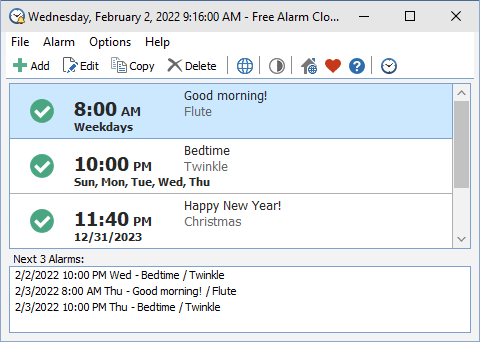
A free, full-featured and user-friendly alarm clock
This freeware program allows you to set as many alarms as you want. You can set one-time alarms or repeating alarms - activate only from Monday through Friday and give you a chance to sleep on the weekends.
Label different alarms to indicate activities you must do at the sound of the alarm. After you set the time and sound for each alarm, you can use a text field to write a note to yourself as a reminder about the alarm's purpose.
Plays MP3 music files
You can select the sound you want to wake up to. Alarm Clock comes with several tones and offers full access to your music library.
Wakes up your system from a Sleep mode
Have you ever wondered if it's possible to wake up your system from a suspended power conservation mode using a resident program and not waste all that energy? The answer is yes, it is possible! Alarm Clock will let you do it. This feature is PC dependent and only possible for PCs that can go to sleep mode.
Turns on the volume
Alarm clock will automatically turn up the volume if you have it on mute by accident. When the alarm is played the program can turn up the volume of Windows forcefully. Additionally, you can set a comfortable sound volume.
How To Use Alarm Clock
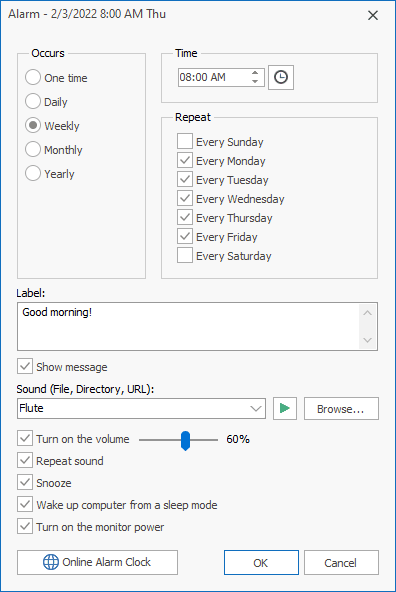
Alarm settings
- Occurs
- The interval at which the alarm recurs.
- Time
- Alarm time. Alarm Clock uses the time format defined in the Windows settings.
- Repeat
- If you selected "Weekly", specify the days of week when the alarm should occur. The alarm will be occurring once a week. The alarm will start at the specified time on each of the specified days.
- Label
- Label different alarms to indicate activities you must do at the sound of the alarm.
- Show message
- If you uncheck this checkbox, a tooltip with the event's description will be displayed in the bottom right corner of the screen.
- You can stop the music by clicking the blinking icon of Alarm Clock in the system tray. Or, if the clock in floating window is visible, click this window to stop the music.
- Concurrent alarm clock events produce only one notification and alarm.
- Sound
- Select the sound you want to wake up to. You can adjust alarm sound by pressing "Browse" button. The alarm clock comes with several sounds and offers full access to your music library.
- The following file formats are supported: mp3, mp2, ogg, wav, wma, aif, aiff, aifc, afc, m3u, flac.
- Turn on the volume
- When the time comes to activate your alarm, the program will set the system volume to a predefined level.
- The system sound will be turned on, and the specified volume will be set. After the sound is played, the initial volume will be restored.
- Please note that as the system volume will be temporarily changed, it may affect other running applications.
- If you muted the sound or decreased the volume, Alarm Clock will unmute the sound and, if necessary, increase the volume to wake you up. If you don't like that, just uncheck the checkbox.
- Repeat sound
- The sound plays repeatedly. You can set the duration of the alarm sound in the program settings.
- Snooze
- Show the "Snooze" button in the alarm message box.
- Wake up computer from a sleep mode
- While your PC is in a sleep mode and the time comes to activate your alarm, Alarm Clock will wake up your computer. Verify that Alarm Clock is allowed to wake the computer.
- Note: Alarm Clock will not wake up your computer when the laptop lid is closed.
- Turn on the monitor power
- The program will turn on your computer monitor when the alarm goes off.
Options
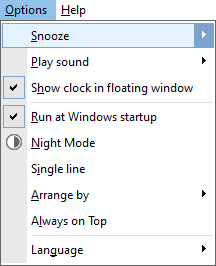
- Snooze
- This setting allows you to set the amount of time before the alarm rings again.
- Play sound
- This setting allows you to define for how long to play the music.
- Show clock in floating window
- Floating window is a small, special window that displays clock.
- Run at Windows startup
- Automatically launch Alarm Clock when the system is started.
- Night Mode
- Turns on a dark theme to display all windows.
- Single line
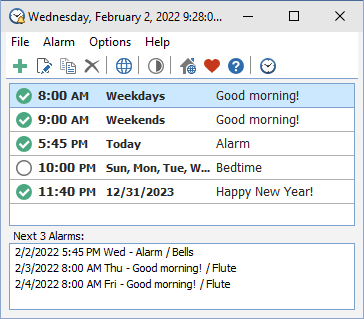
- This option lets you display rows in the alarm list in a special way: Each row will become smaller in height and will contain only one line. The font size for displaying time will be reduced.
- Arrange by
- Use this setting to arrange the alarm list by Time, Name, or Next alarm time.
- Always on Top
- If you set this option, the main window will be placed above all non-topmost windows, and will stay above them even when deactivated.
- Also when this option is enabled, the caption of the main window is reduced and the program icon is removed from the taskbar.
- Language
- The language of the user interface
Download Links
If you need alarm clock software for Windows-based computer, this is the software you are looking for. Alarm Clock supports unlimited number of alarms so that you are not restricted to the number of alarms you can set.
Comments
Post a Comment